
/u01/data went missing on a WebLogic OCI instance
The mountpoint was gone. The data was not. Getting it back involved an fstab entry that can stop an instance booting, and a mount command whose output reads like a failure when it is telling you the mount succeeded.
What happened
Routine filesystem maintenance on a WebLogic on OCI instance, and afterwards /u01/data was not there. For WebLogic that is not a cosmetic problem — domains, logs and application state live on that volume, and a managed server that cannot find its directory does not start.
The first instinct when a mountpoint disappears is that something was destroyed. Almost always it was not. A mountpoint is a relationship between a block device and a directory, and relationships are cheap to break: a wrong umount, an edited /etc/fstab, a reboot after either. The block volume is still attached, still holding the data, and simply not connected to anything.
So the first job is not to fix it. It is to confirm there is nothing to mourn.
Confirm the volume is still there
# lsblk
# blkid /dev/sdb
lsblk shows the attached block devices; blkid reports the filesystem UUID and type on one of them. If blkid returns a UUID and a filesystem type, the filesystem is intact and this is a mounting problem, not a data problem. That distinction is worth making out loud before anyone starts talking about restores.
In this case the device was there, the filesystem was there, and the UUID entry in /etc/fstab was not.
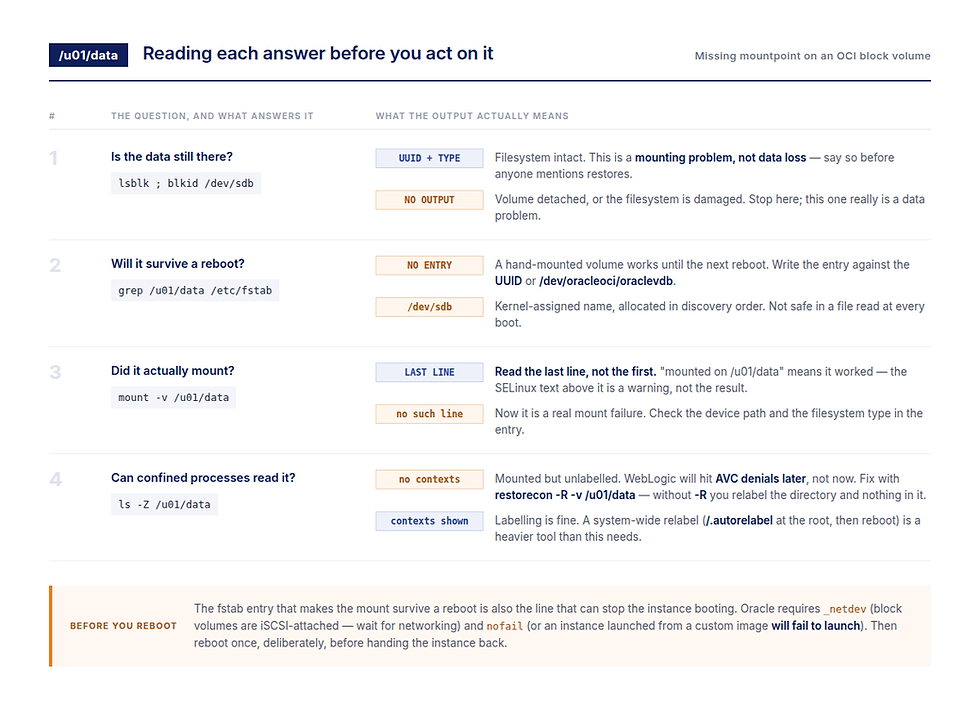
Each step's output decides whether the next one is even the right question. Step 3 is the one most often misread.
Rebuild the fstab entry — but not around /dev/sdb
The obvious fix is to put the entry back. The trap is what you put in it.
/dev/sdb is a kernel-assigned name, allocated in the order devices are discovered. It is stable enough for a blkid command you run right now and not something to write into a file that is read at every boot. Attach a second volume, or reboot into a different discovery order, and /dev/sdb can be a different disk.
Two better identifiers:
The filesystem UUID, which blkid just gave you. It belongs to the filesystem, not to the slot it was discovered in.
The OCI consistent device path, /dev/oracleoci/oraclevdb and so on, which Oracle provides precisely so the name survives reboots. These are enabled by default on Linux platform images released from November 2018 onwards, for instances launched after 11 January 2019 — but not on custom or partner images unless you enable “Consistent volume naming” in the image capabilities.
That second caveat matters more than it sounds. WebLogic for OCI instances are frequently built from marketplace or custom images, which is exactly the category where consistent device paths are not on by default. Check before you rely on the path existing.
The two options that keep the instance bootable
This is the part the original version of this story skipped, and it is the part that can cost you an instance rather than an afternoon.
Oracle's documentation on fstab options for block volumes is explicit:
On Linux instances, if you want to automatically mount volumes on instance boot, you need to set some specific options in the /etc/fstab file, or the instance may fail to launch.
Two options do that work:
_netdev — tells the boot process this is a network-attached device, so the mount waits until networking is up. OCI block volumes are iSCSI-attached; without this, the mount is attempted before the device can exist.
nofail — lets the boot continue if the device is not there.
Oracle is specific about why the second one matters:
When you create a custom image of an instance where the volumes, excluding the root volume, are listed in the /etc/fstab file, instances will fail to launch from the custom image. To prevent this issue, specify the nofail option.
So the entry looks like this, not like a bare defaults:
/dev/oracleoci/oraclevdb /u01/data xfs defaults,_netdev,nofail 0 2The irony is worth sitting with: the fix that makes the mount survive a reboot is also the change that, written carelessly, stops the instance rebooting at all. A missing mountpoint is an inconvenience. An instance that will not boot because of an fstab entry is a recovery exercise.
The mount that looks like it failed
With the entry in place:
# mount -v /u01/data
mount: /u01/data does not contain SELinux labels.
   You just mounted an file system that supports labels which
   does not contain labels, onto an SELinux box. It is likely
   that confined applications will generate AVC messages and
   not be allowed access to this file system. For more details
   see restorecon(8) and mount(8).
mount: /dev/sdb mounted on /u01/data.
Read the last line. The mount succeeded. Everything above it is a warning, and it is warning about something that has not happened yet.
The filesystem carries no SELinux security contexts. Mounting it is fine. What will not be fine is the next thing a confined process tries to do with it — and on a WebLogic host, that is the managed server reading a domain directory. The failure arrives later, as AVC denials in the audit log, from an application that was working an hour ago.
This is why the message is easy to misread as a mount failure: the consequence and the warning are separated by however long it takes something to touch the filesystem.
Relabelling: what works, and what only looks like it should
The warning names restorecon, so that is where most people go first:
# restorecon /u01/dataThat relabels /u01/data — the directory, and nothing inside it. On a filesystem with no labels at all, relabelling the top directory changes almost nothing. The recursive form is the one that does the work:
# restorecon -R -v /u01/data-R applies the default contexts to the directory and everything nested under it; -v shows you what it changed, which is the difference between believing it worked and knowing it did.
The heavier alternative is a full relabel of the system on next boot. Oracle documents that as a file at the root of the filesystem:
# touch /.autorelabel
# reboot
or, equivalently, fixfiles -F onboot. Note the path. /.autorelabel is read at boot; a file of the same name created inside the mounted volume — /u01/data/.autorelabel — is not the documented mechanism and is not what triggers the relabel. If you have tried that and the problem went away, the reboot and a now-correct fstab entry did more of the work than the file did.
A full relabel walks every filesystem on the machine. On a WebLogic host with a large domain and application directory, that is not a quick boot. Reach for restorecon -R on the volume first; keep /.autorelabel for when the labelling problem is genuinely system-wide.
The order that saves time
lsblk and blkid — establish the volume and filesystem are intact before anything else. This is the step that stops a mounting problem being escalated as a data-loss incident.
Write the fstab entry against the UUID or the OCI consistent device path, never /dev/sdb.
Include _netdev and nofail. Check this twice; this is the line that can stop the instance booting.
mount -v and read the last line to find out whether it mounted.
restorecon -R -v on the mountpoint, and only escalate to /.autorelabel if the labelling problem is wider than this volume.
Reboot once, deliberately, before handing the instance back — so you find out now whether the entry survives, rather than during the next unplanned restart.
That last step is the whole point. A volume mounted by hand works perfectly until the next reboot, and the next reboot is rarely at a time of your choosing.

Comments